
Setting up a livestream channel follows the same first steps as a paid channel, all inside Telegram, just with one different choice at the end.
Screenshots shown are from Telegram Desktop. Your app may look slightly different depending on your device, but the steps are the same
1. Start in the bot
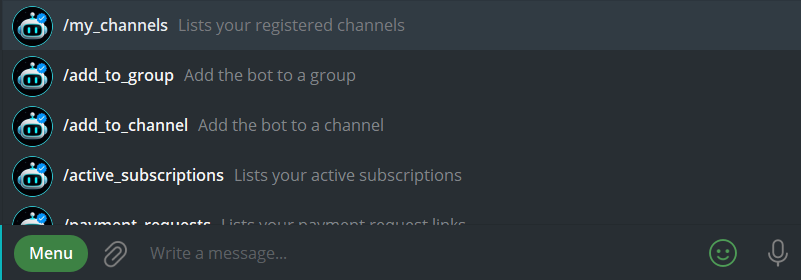
Open TGM Bot, tap from the menu /my_channels, then “+ Register New Channel.“
2. Create your channel in Telegram
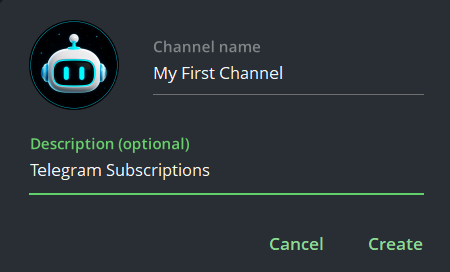
First, create a new private channel in Telegram (new here? here’s how). Add a name and picture (description is optional), then set it as Private. ⚠️ Public channels won’t work for subscriptions. Skip adding members for now, you’ll add the bot in the next step.
3. Connect the bot
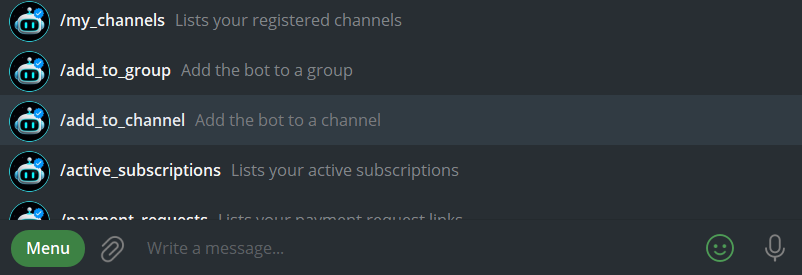
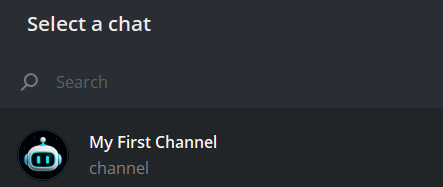
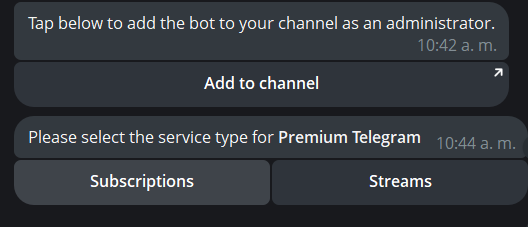
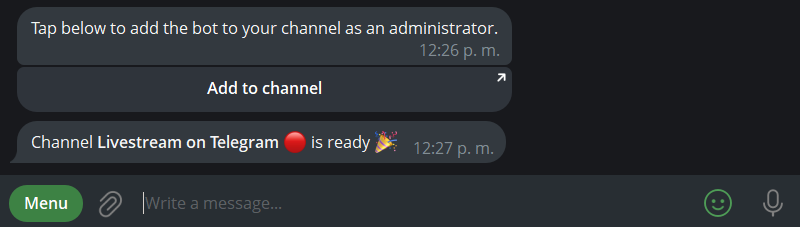
Back in TGM Bot chat, tap menu and /add_to_channel and select the channel you just created, then accept the admin permissions as shown. These permissions are what let the bot manage subscriptions and messages for you.
4. Choose your channel type
The bot will ask what kind of channel this is. Select Streams
5. Set your price and link name
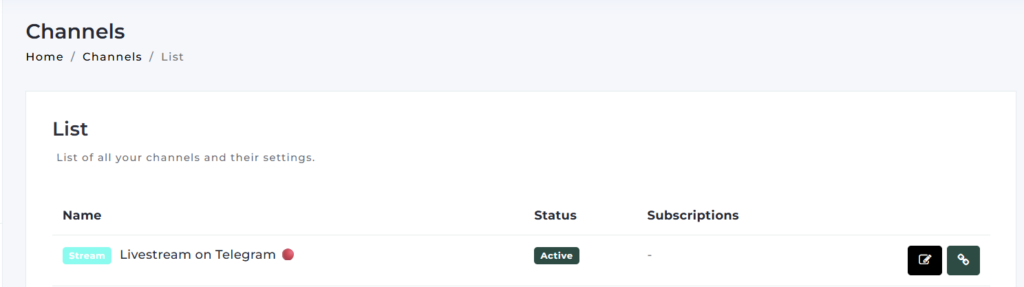
Back in TGM Bot, tap /my_channels, select your streaming channel, then tap Edit. This opens your dashboard directly, no need to log in manually. then select your channel, and tap Edit 📝.
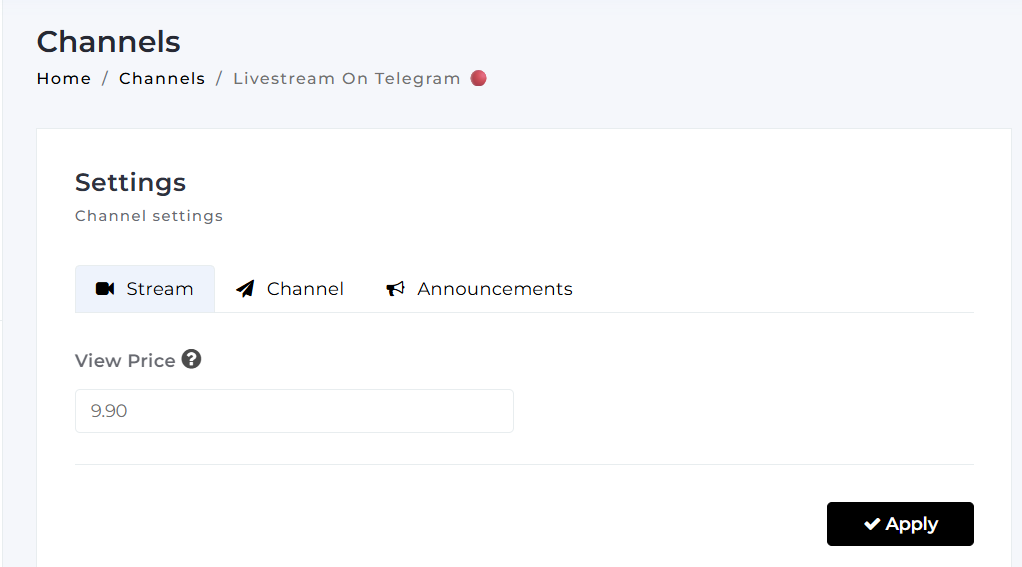
Set the price for your livestream and in Channel tab you can also set a custom name for your shareable link. Tap Apply to save.
That’s it, your streaming channel is ready. 🎉
💡 Good to know
- Livestream access is a one-time payment, not a recurring subscription.
- Once your livestream ends, the system automatically removes all paid viewers from the channel, so it’s empty and ready for your next livestream. No need to create a new channel each time.
Next: Learn more about [How to do a livestream in Telegram], where we cover promoting your stream, going live, and what to expect during and after.